Total Compensation Statement Report
Human Resources > Reports > Management Reports > Total Compensation Statement
To give you a yearly breakdown of compensation types for each employee, the Total Compensation Statement has been added to the Management Reports menu:
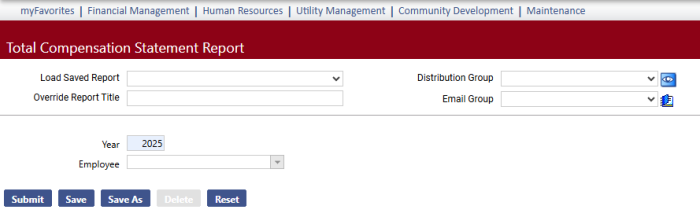
Select the Year (current or prior) and the Employee, or leave the Employee field blank to run the report for all employees.
Click Submit to generate and display the results, organized by department, with amounts per compensation type and total amounts per employee:
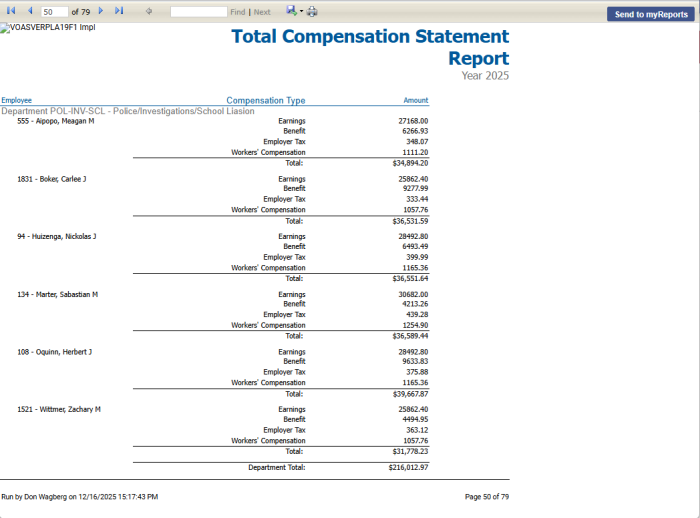
A grand total is provided on the last page of the report.
To send the report to myReports as a PDF, click the Send to myReports button. To export the report to a preferred format, such as Excel or Word, select the format from the Export drop-down.
For this report to be available on a user's Management Reports menu, the user needs permission to the Total Compensation Statement security component:
- Navigate to Maintenance > new world ERP Suite > Security > Users. The User List page displays.
- Use the filter in the User Name column to search for the user.
- Select the user's row.
- Click Permissions. The User Permissions page displays, containing a grid of security components and a filter panel.
-
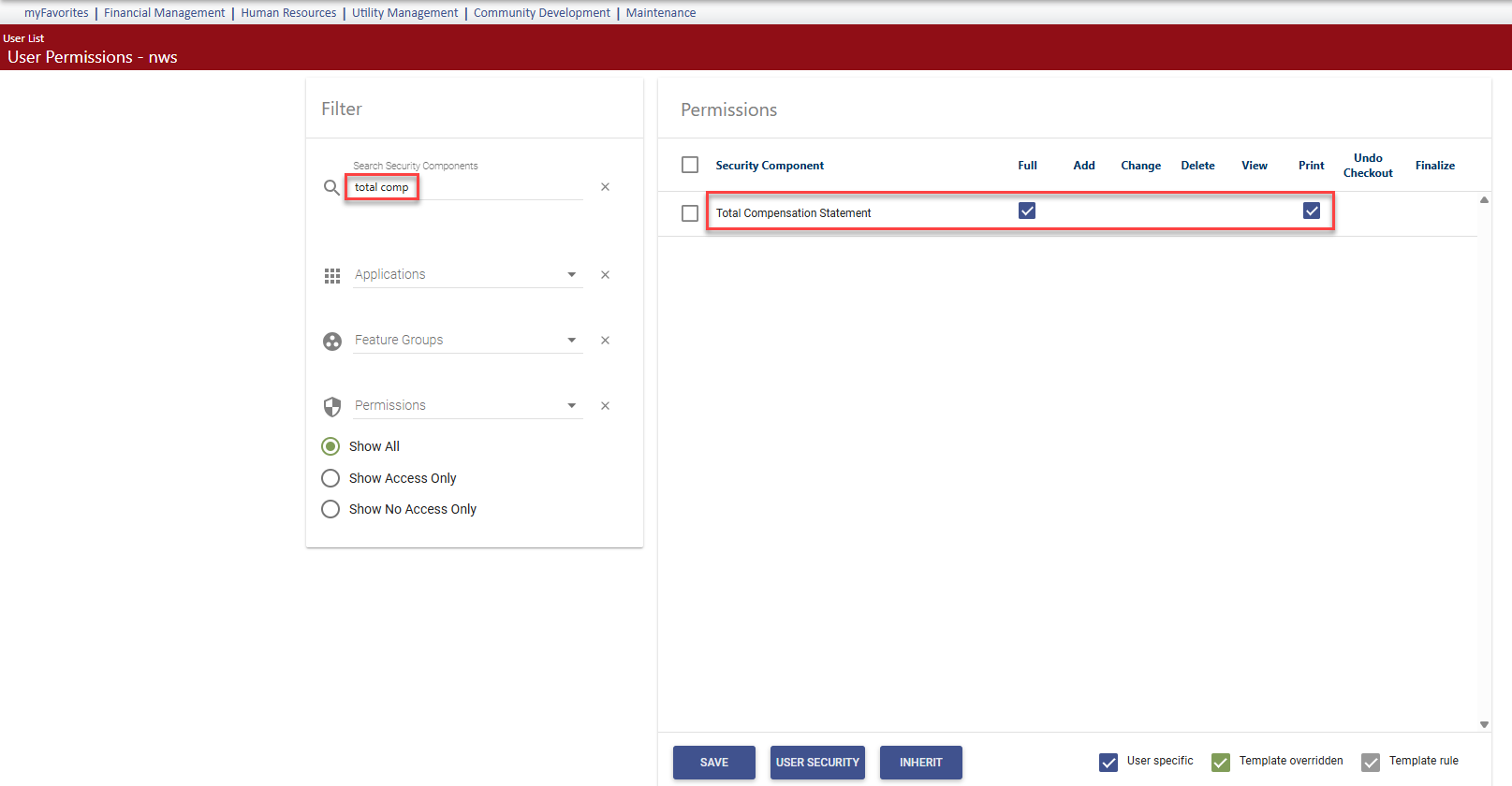
In the Search Security Components filter, type total comp. The grid refreshes to display the Total Compensation Statement component:
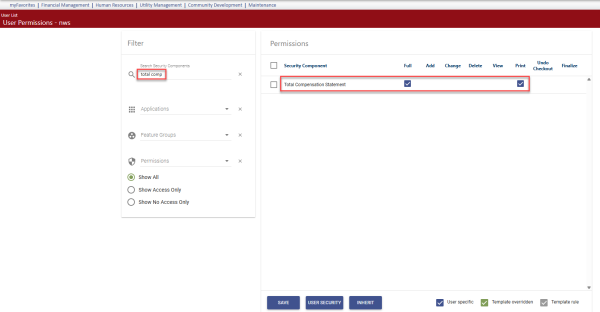
- Select Full permission.
- Click Save.
- For the permission to take effect, the user must log off and log back on.
Note: This report will continue to be developed.