Centralized Hours Entry
Human Resources > Payroll Hours > Centralized Hours Entry
The Centralized Hours List, or Employee Hours, page lets you search for employees who are part of a selected batch after the employee hours have been imported from departmental hours. From this page, since hours have yet to be validated, you may edit the hours and add employees to the pay batch.
Note: Most of the processing you do from here you also may do from Import Departmental Hours, and vice-versa. The process of entering employee hours is covered in detail in this section.
Use the fields at the top of the page to narrow your search for employee hours records.
Leaving a field blank finds all information for that field. Leaving all fields blank finds all employee hours records.
Selecting the Not Validated Only box finds only the employee hours records that have not been validated.
The Hours Entry Mode determines whether hours information for an employee displays in Quick Entry or Detail Entry mode when you click an Employee hyperlink on this page.
When you click the Search button, the pay batch is searched for information matching your search criteria. Any field left blank returns all information for that field.
Results of the search display on the bottom half of the page, sorted alphabetically by employee name.
If you need a snapshot of the work hours and other pay numbers for a particular employee, hover the pointer over the Employee Name.
To add an employee to the selected pay batch, click New button, located in the bottom border of the grid. The Add Employee to Batch pop-up opens:
- Using the drop-down, select an Employee.
- To have an employee's standard hours to be created at the time the employee is added to the batch, check the Create Schedule box. Standard hours are maintained in the employee's Schedules section of Workforce Administration.
- Click OK. The pop-up closes, and the Centralized Hours List page reopens with the new employee highlighted.
To delete an employee from the pay batch, use the Delete Selected button. (This button is not available on the Department Hours Entry page.) If you mistakenly delete an employee, use the New button to re-add the employee.
If you need to add a terminated employee to the pay batch, click the Add Terminated Employee button.
To add a terminated employee, the following must apply:
- The employee has an employment status that is not eligible for payroll (Employment Status Event Maintenance qualifies if the status is not checked for initialized payroll status).
- The employee's termination date is prior to the pay batch start date and is within the previous 365 days of the pay batch start date.
- The employee has an active job.
Select the employee whose hours you want to enter. If Hours Entry Mode is Quick Entry, the Employee Hours Entry page opens. If Hours Entry Mode is Detail Entry, the Hours Entry Detail page opens.
The One Time button gives you the option to process an employee benefit, deduction or direct deposit that affects one check only. An example of a one-time deduction may be a contribution to a charitable organization.
Before using this feature, make sure the benefit, deduction or direct deposit is set up on the employee's record in Employee Maintenance.
From the Centralized Hours List page, you also have the option to validate employee hours individually or collectively:
- Check the boxes next to the employee or employees whose hours you want to validate. To select all employees, check the box at the top of the Employee Name column.
-
Click the Validate Selected button. The Payroll Validation pop-up opens, showing that the validation is in progress.
- Click OK. The Employee Hours page reopens, showing green check marks in the Validated column next to all employees whose hours have been validated successfully and red Xs next to those whose have not.
- To make corrections to hours records that were not validated, check the Not Validated Only box.
- Click the Search button to populate the grid with not-validated employees only.
- Select the Employee Name to open the Employee Hours Entry page.
A message displays when the validation has completed, and a report is sent to myReports.
 Set Up Department Approvals
For payroll clerks who enter hours for their own departments, the hours entries need to be approved before they can be imported to Centralized Hours processing.
To set up department approvals, follow these steps:
- Navigate to Maintenance > new world ERP Suite > Process Manager-Process.
- Click to the right or left of the Payroll-Department Hours Entry link to highlight it.
- Click the Set Up Departments button.
-
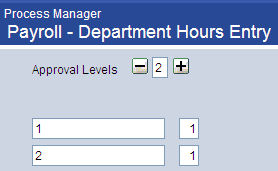
At least two approval levels are required:
-
In the Available Departments list box, select (highlight) the departments that enter and approve their own hours, and move them to the Selected Departments list box.
- Click Save.
- Click the Process Manager breadcrumb to reopen the Process Manager-Process page.
- Click the Manager icon
 , located directly under the Process Manager page header.
 - In the list of users, click (highlight) the name of the user who approves hours for a department.
- Click the Process Approvals button. The Process Approvals pop-up opens.
- Click in the Process field to open a drop-down list of available processes.
- Select Payroll-Department Hours Entry.
- In the Approval Level field, select 2 (Level-2).
- From the Available Departments list box, move the departments you selected in step 5 to the Selected Departments list box.
- Click Save and Close.
When a pay batch is initialized, the selected departments go to Department Hours processing, where employee hours may be entered.
After hours have been entered and approved, they need to be imported to Centralized Hours through the Import Departmental Hours function.