W-2 Company List 
Use this page to add and edit information on the companies available for W-2 processing.
Note: Information for all companies with W-2 data is created during the Create W-2 Data process. Existing company information is not overwritten.
To edit the company information before W-2s are created, click the corresponding EIN hyperlink.
To add a new company for this tax year, click the New button. In either instance, the W-2 Company pop-up opens.  Show me.
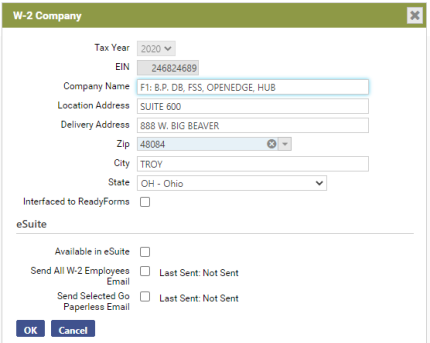 Fields-W-2 Company Pop-up
| Field | Description |
|---|---|
| Tax Year | Tax year being reported. The current year is the default selection. |
| EIN | Required. Company tax ID. This entry may contain 9 characters. It may not be edited once the information is saved. |
| Company Name | Required. Company name as it will appear on W-2s and related reports. This entry may contain 100 characters. |
| Location Address | Company address, if different from Delivery Address. This entry may contain 50 characters. |
| Delivery Address | Required. Company delivery address. This entry may contain 50 characters. |
| Zip |
Zip code of the company address. The entry may be in a standard zip format or a zip+4 format. If you use the zip+4 format, include the hyphen between the fifth and sixth digits (49660-1234). As you type the numbers, zip codes most closely matching your entry display on a drop-down. Select the correct one. When you <Tab> or click off the field, the City and State fields automatically populate with the entries corresponding with the zip code. |
| City and State | City and state of the company. You may edit either entry if it is different from the one the system selects. The City entry may contain 50 characters. |
| The following apply only if you are licensed to eSuite. | |
| Available in eSuite |
Allows payroll administrators to suppress W-2 viewing in eEmployee until all W-2s have been validated for completeness and correctness. This check box is visible only to users who are licensed to eEmployee. Note: This box should not be marked until W-2s are in balance and ready to be distributed to employees. |
| Send All W-2 Employees Email | All employees to receive emails informing them of the option in eSuite to have their W-2s delivered electronically. |
| Send Selected Go Paperless Email |
All employees who choose the electronic delivery of W-2s to receive emails informing them that their W-2s are available in eSuite. Note: The email templates for these processes are located on the Email Template Setup page in Maintenance (Maintenance > new world ERP Suite > System > Email Templates). Use the Template Setup panel on the left side of the page to find the email template you want to load in the template view/edit panel on the right side of the page. |
After making your entries, click OK to save them.
To see help for another page in the W-2 Processing workflow, click the appropriate link provided below:


